Sending a Pro Tools session
No bouncing stems. You send me the whole session, with your plugins, automation, panning and volume levels left as they are, using Save Session Copy In.
Copy In makes a fresh folder holding the session and a copy of every audio file it uses, so nothing points back at your drive.
The settings, at a glance
- Format
- Session (Latest)
- Convert to Specified Format
- Off
- Audio Files
- Ticked
- Session "Plug-In Settings" Folder
- Ticked
- Session Fade Settings Folder
- Ticked
- Root "Plug-In Settings" Folder
- Off
1. Commit anything I might not have
Select any virtual instrument or MIDI track, and any track whose sound depends on a plugin, then Track › Commit…. The defaults are right: Consolidate Clips on, Sends and Group Assignments copied, Source Tracks set to Hide and Make Inactive.
That prints it to audio, and keeps the original hidden in the session in case I need it.
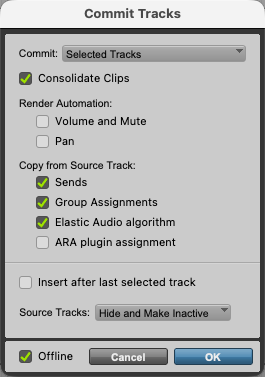
2. Bounce a rough mix
File › Bounce Mix… (⌥⌘B). Name it after the song with ROUGH MIX on the end.
Export Type: WAV (BWF). File Format: Interleaved. Bit Depth: 32 Bit Float. Sample Rate: the same as your session. Untick Add MP3.
It lands in the session's Bounced Files folder. You'll move it next to the copy at the end.
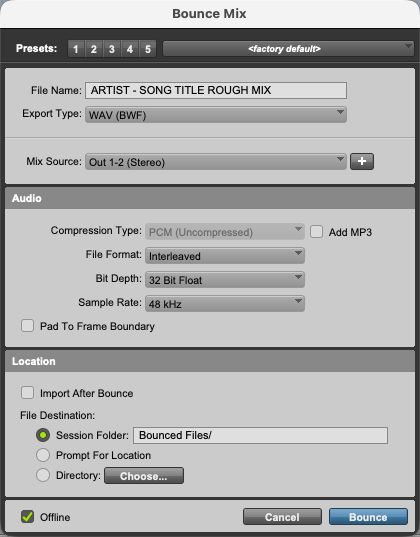
3. Open Save Session Copy In
Save the session first (⌘S), then File › Save Session Copy In….
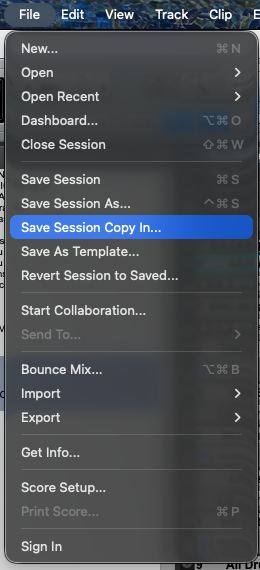
4. Tick Audio Files
Format: Session (Latest). Leave Audio File Type, Sample Rate and Bit Depth as they are, and leave Convert to Specified Format off.
Under Items To Copy, tick Audio Files. This is the one that matters: without it the copy has no audio in it, just a session pointing at files on your computer.
Also tick Session "Plug-In Settings" Folder and Session Fade Settings Folder. Leave Root "Plug-In Settings" Folder off — that's your whole preset library, and it can run to hundreds of megabytes.
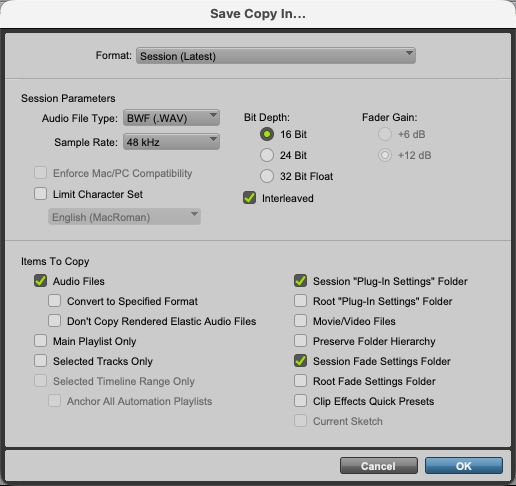
5. Name it and save
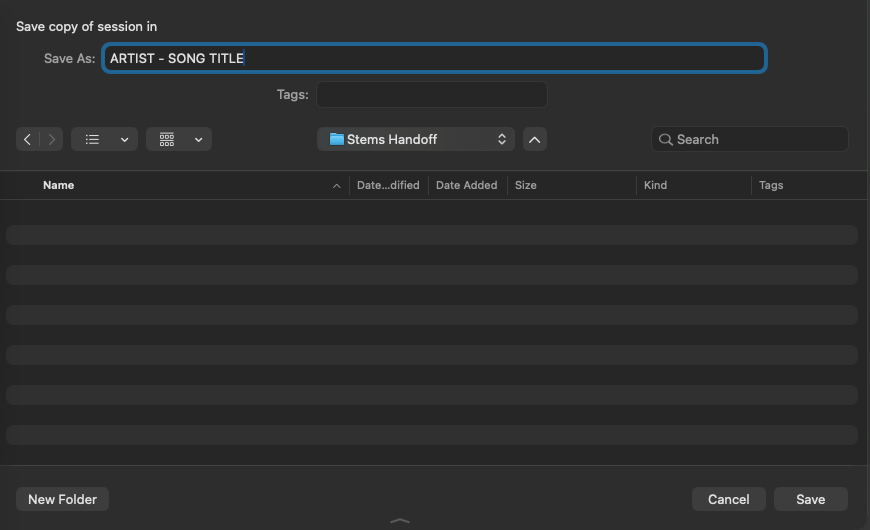
Click OK. Name the copy with the artist and song title, pick somewhere easy like your Desktop, and click Save. Pro Tools makes a new folder with that name.
6. Add the rough mix and check the folder
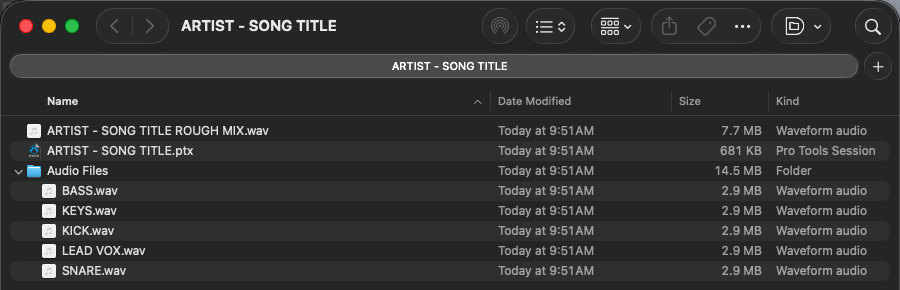
Drag your rough mix from the original session's Bounced Files folder into the new one. Then open the copy and press play — it should sound like your rough mix.
Before you send it
- The folder has the .ptx session, an Audio Files folder, and your rough mix.
- Opening the copy plays every part, with no missing files.
- Virtual instruments and plugins that make the sound are committed to audio.
- The folder is named with the artist and song title.
Other DAWs
Logic Pro · Ableton Live · FL Studio · Cubase