Bouncing stems in Ableton Live
Live can export every track as its own file in one go, and unlike Logic's version it's reliable. Each file comes out with that track's devices and automation, from the same start point.
The settings, at a glance
- Rendered Track
- All Individual Tracks
- Render Start
- 1. 1. 1
- Include Return and Main Effects
- Off
- Render as Loop
- Off
- Convert to Mono
- Off
- Normalize
- Off
- Create Analysis File
- Off
- Sample Rate
- Same as your project — don't change it
- Encode PCM
- On
- File Type
- WAV
- Bit Depth
- 32
- Dither Options
- No Dither
1. Turn off anything on the Main track
Click the Main track (called Master before Live 12) and switch off every device on it with the round button in its title bar.
The export settings below leave the Main track out anyway, but this way the rough mix you check against is the same balance.
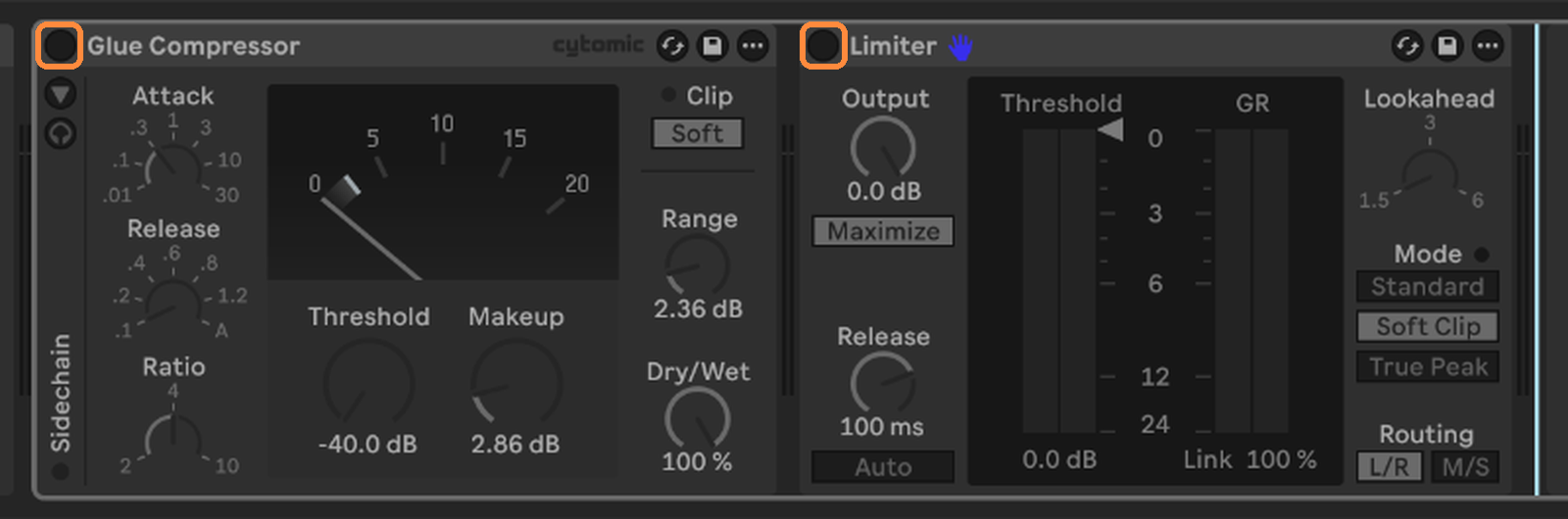
2. Screenshot your Main track plugins
Take a screenshot of the Main track's device chain, showing every plugin and the order they're in, and put it in the stems folder. Switched off is fine in the picture. I just need to see what's there.
That's how I rebuild your rough mix's master chain exactly, so what I'm mixing against sounds like what you sent.
Then open each plugin's window and screenshot that too, so I can copy its settings knob for knob.
3. Select bar 1 to the end in Arrangement View
Switch to Arrangement View (Tab). Drag across the timeline from bar 1 to a bar or two past the last note, so tails can ring out.
Clips playing in Session View won't be in the export — everything has to be in the arrangement.
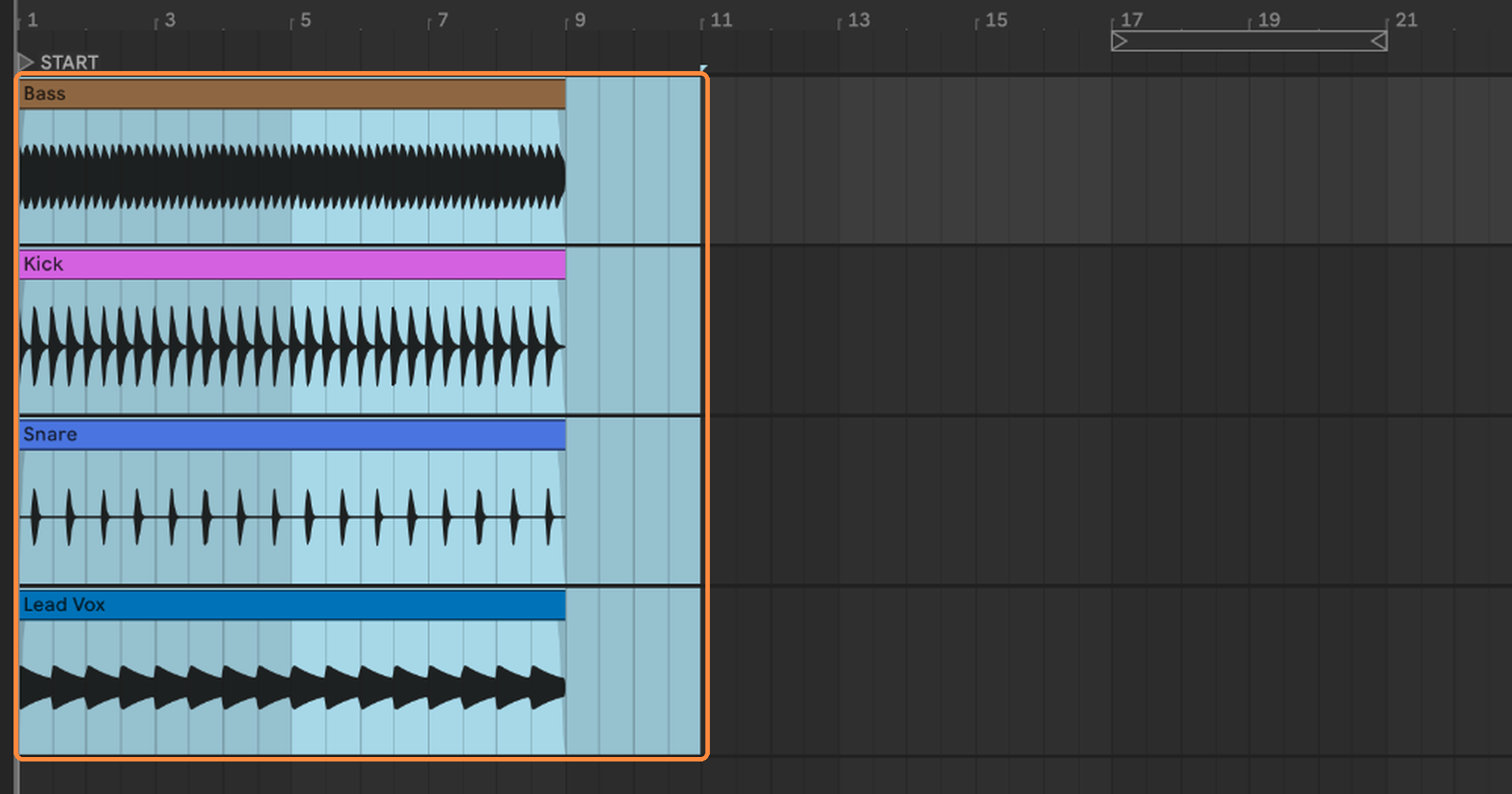
4. Open Export Audio/Video
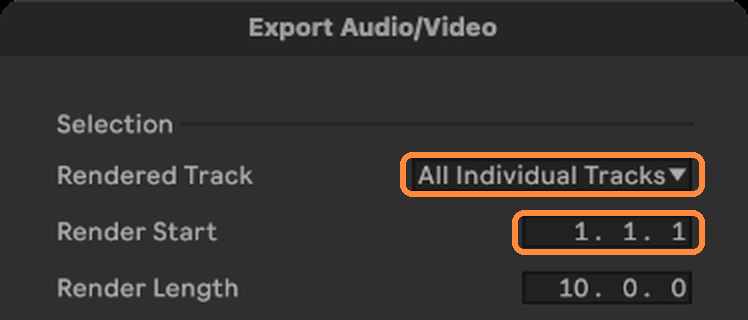
File › Export Audio/Video… (⇧⌘R). Under Selection, set Rendered Track to All Individual Tracks.
Check Render Start reads 1. 1. 1 and Render Length covers the whole song.
5. Set the options
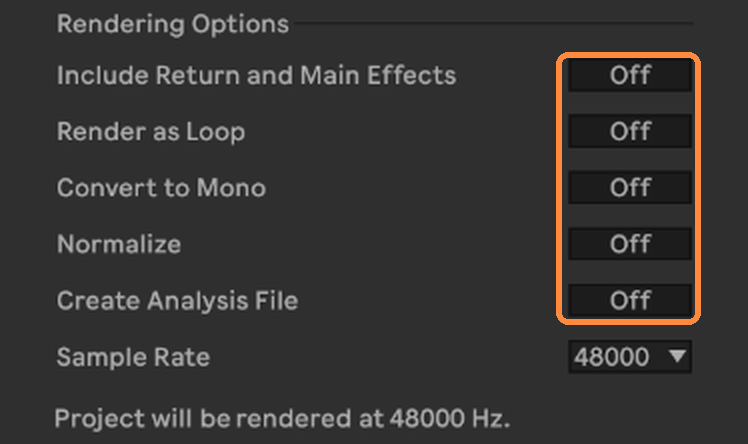
Turn Include Return and Main Effects off. That keeps each track dry of the shared reverbs and delays — the return tracks come out as their own files instead, so I get both.
Render as Loop, Convert to Mono, Normalize and Create Analysis File: all Off.
6. Set the format and export
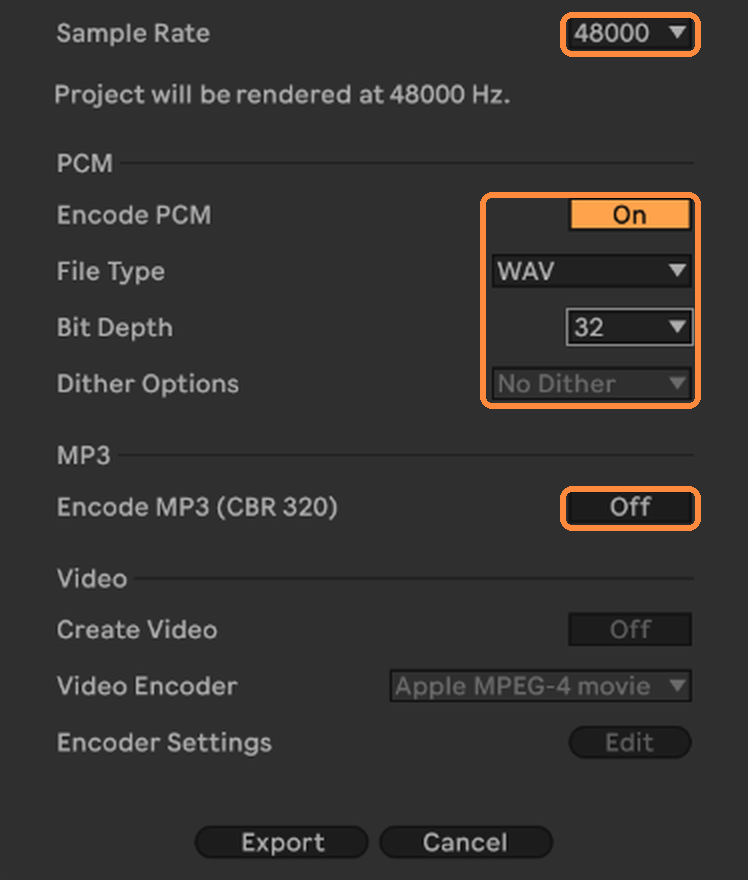
Sample Rate: the same as your project — whatever you recorded at. Live says underneath what rate it'll render at.
Encode PCM: On. File Type: WAV. Bit Depth: 32 (that's 32-bit float, so a channel that goes over 0 dB doesn't get clipped). Dither Options greys out at 32, which is right. Leave Encode MP3 (CBR 320) and Create Video Off.
Click Export, make a new folder for the song, and save. Live names every file after its track, so name your tracks properly first.
7. The lead vocal
The export gives you the lead vocal as it sounds on its track. For the dry one, switch its devices off, set Rendered Track to just that track, and export it again with "DRY" in the name.
Group tracks come out as their own files as well. Leave them in — I'll know what they are.
Before you send it
- One file per track, each named after its track.
- Every file is the same length and starts at bar 1, beat 1.
- Drag them all into an empty session at bar 1 and press play: it should sound like your rough mix.
- The rough mix and your session file are in the same folder.
- A screenshot of your master bus plugins, in order, is in there too.