Bouncing stems in FL Studio
FL exports one file per mixer insert, not per channel. So the step people skip — giving every sound its own insert — is the one that matters. Anything left on the Master insert comes out glued together, or not at all.
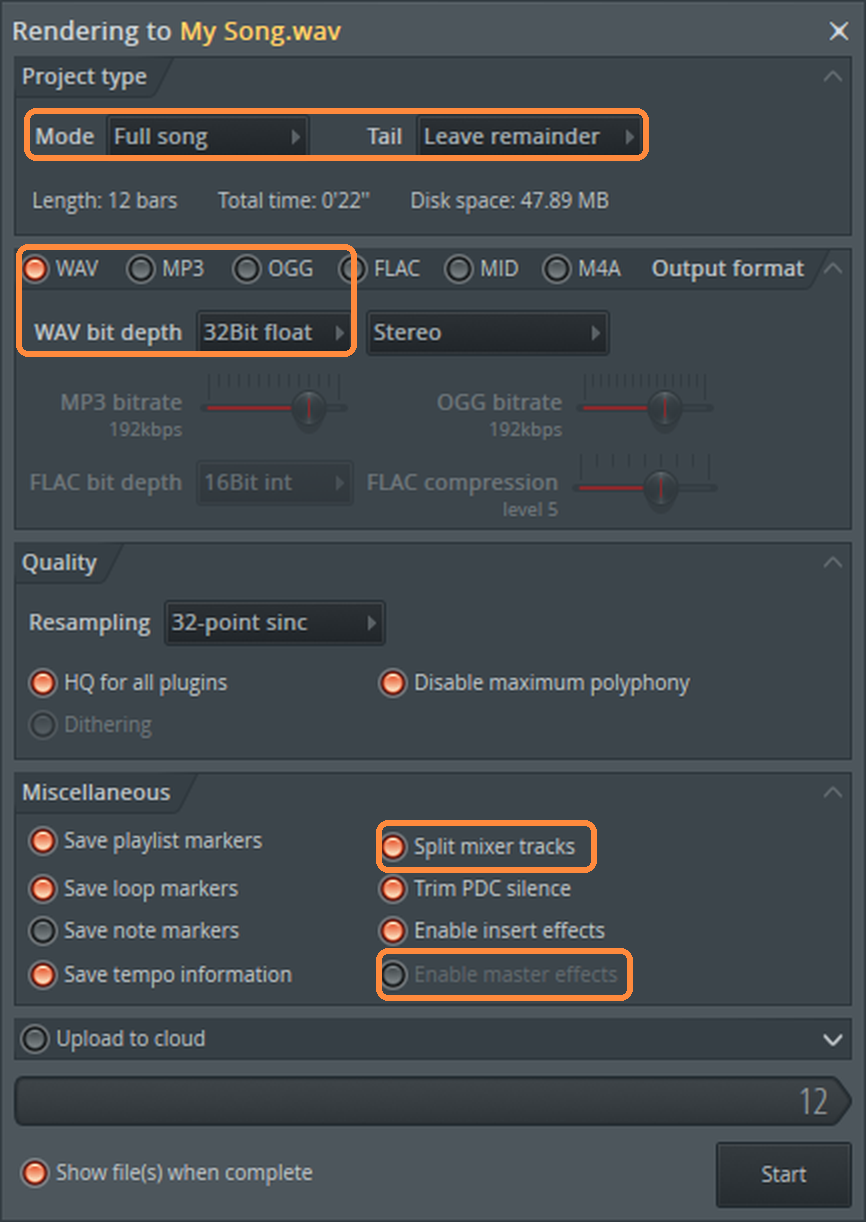
The settings, at a glance
- Mode
- Full song
- Tail
- Leave remainder
- Output format
- WAV
- WAV bit depth
- 32Bit float
- Split mixer tracks
- On
- Enable insert effects
- On
- Enable master effects
- Off
- Sample rate
- Same as your project — don't change it
1. Give every channel its own mixer insert
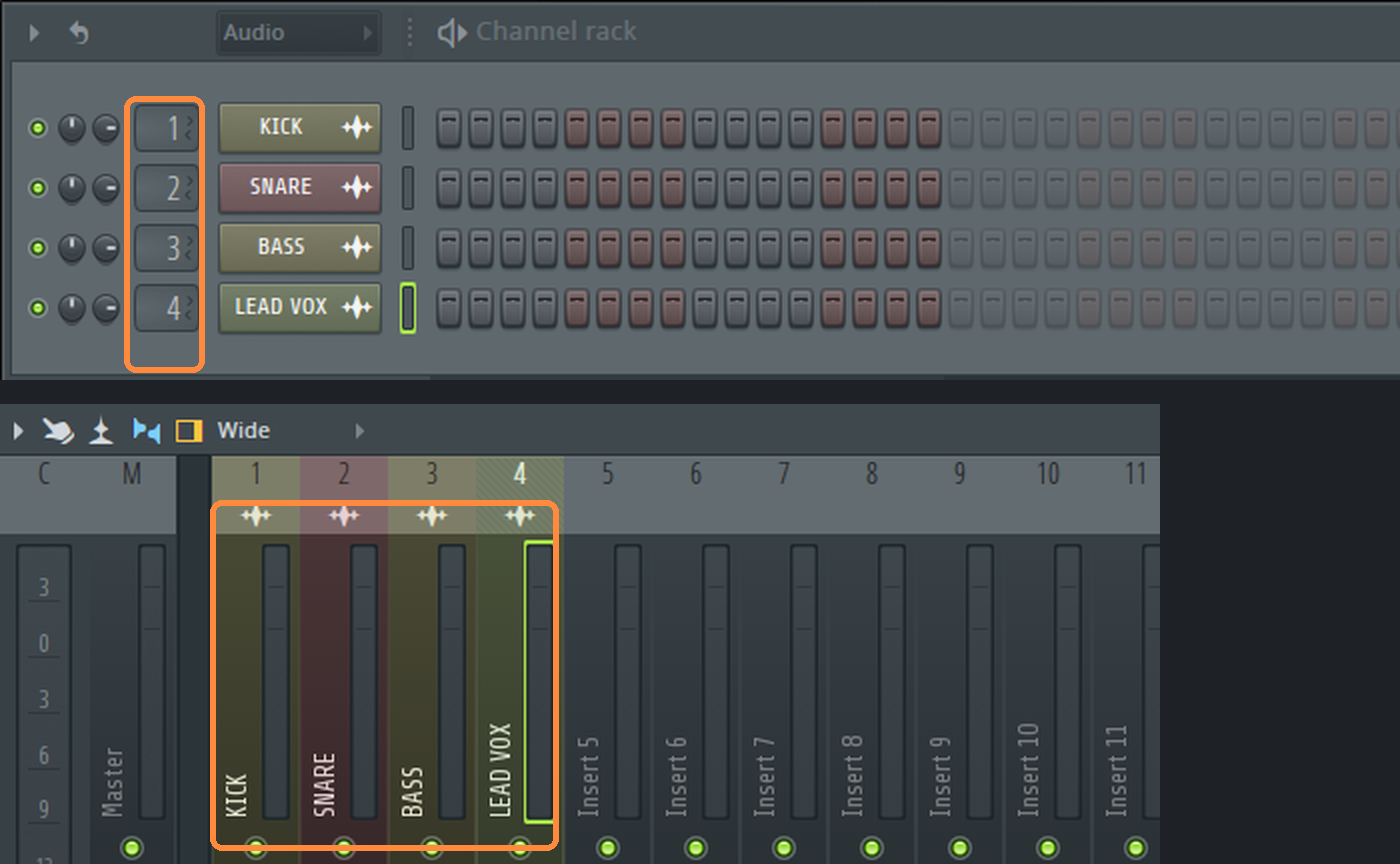
Open the Channel Rack (F6) and the Mixer (F9). Every channel needs its own numbered insert — check the small number box on each channel; a dash means it's going straight to Master.
Quickest way: select a channel in the Channel Rack, click an empty insert in the Mixer, and press Ctrl+L (⌘L on a Mac). The channel moves to that insert and the insert takes its name. Do the next channel on the next insert.
Audio clips in the Playlist need the same treatment through their channel in the Channel Rack.
2. Name the inserts
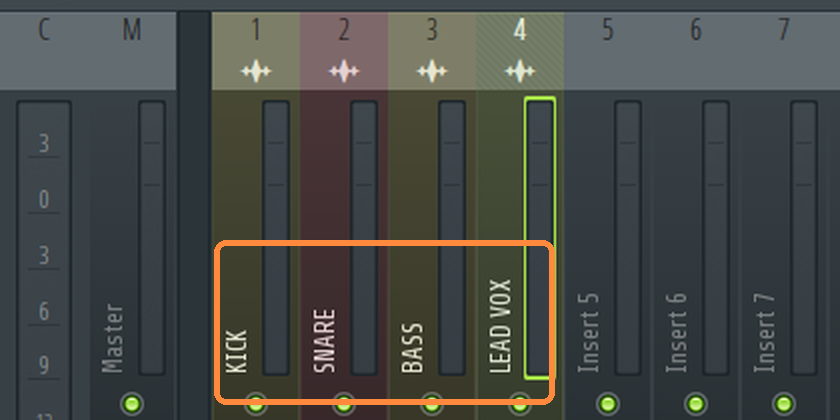
Each insert's name becomes its file name. Ctrl+L names them after the channels; rename any that say "Insert 12" (F2 on the insert).
3. Turn off anything on the Master
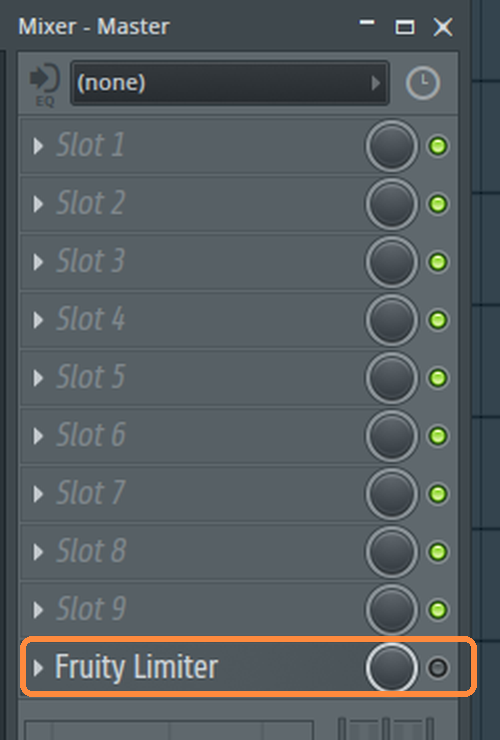
Click the Master strip in the Mixer and switch off every effect on it: click the small green light at the right of each slot so it goes dark. The export setting below does this too, but your rough mix should match.
4. Screenshot your Master plugins
Take a screenshot of the Master insert's effect slots, showing every plugin and the order they're in, and put it in the stems folder. Switched off is fine in the picture. I just need to see what's there.
That's how I rebuild your rough mix's master chain exactly, so what I'm mixing against sounds like what you sent.
Then open each plugin's window and screenshot that too, so I can copy its settings knob for knob.
5. Open the export window
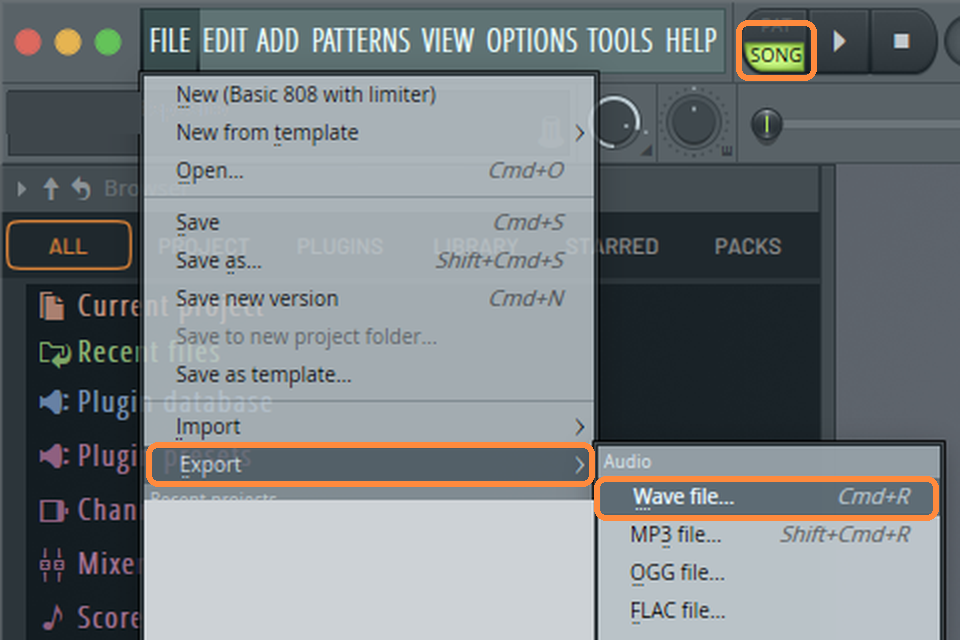
Switch the transport from PAT to SONG, then FILE › Export › Wave file… (Ctrl+R / ⌘R). Make a new folder for the song and save into it.
6. Set it up
Mode: Full song. Tail: Leave remainder, so reverbs ring out instead of being cut.
Output format: WAV. WAV bit depth: 32Bit float, so a channel that goes over 0 dB doesn't get clipped in the file.
Under Miscellaneous, turn on Split mixer tracks — that's the setting that makes it one file per insert. Leave Enable insert effects on, and turn Enable master effects off. It can look greyed out; click it anyway so its light goes dark.
FL renders at the project's sample rate, which is what you want. Don't change it in Options › Audio settings before you render — leave it at whatever you recorded at.
7. Start and check the folder
Click Start. FL writes one WAV per insert with something on it, plus one for the Master — send it too, it's a handy rough mix.
For the lead vocal dry and wet, export its insert once with the effects on and once with them off, and put "DRY" in the second name.
Before you send it
- One file per track, each named after its track.
- Every file is the same length and starts at bar 1, beat 1.
- Drag them all into an empty session at bar 1 and press play: it should sound like your rough mix.
- The rough mix and your session file are in the same folder.
- A screenshot of your master bus plugins, in order, is in there too.
Other DAWs
Logic Pro · Ableton Live · Cubase · Pro Tools