Bouncing stems in Cubase
Cubase Pro and Artist can export every channel at once through Export Audio Mixdown. Cubase Elements can't — there, export one channel at a time the same way, changing the channel each time.
The settings, at a glance
- Channel Selection
- Multiple, every channel ticked
- Naming Scheme
- Channel Name only
- File Type
- Wave
- Sample Rate
- Same as your project — don't change it
- Bit Depth
- 32 bit float
- Export as
- Interleaved
- Effects
- Inserts and Strip
- Export Range
- Locators, from 1. 1. 1. 0
- After Export
- Do Nothing
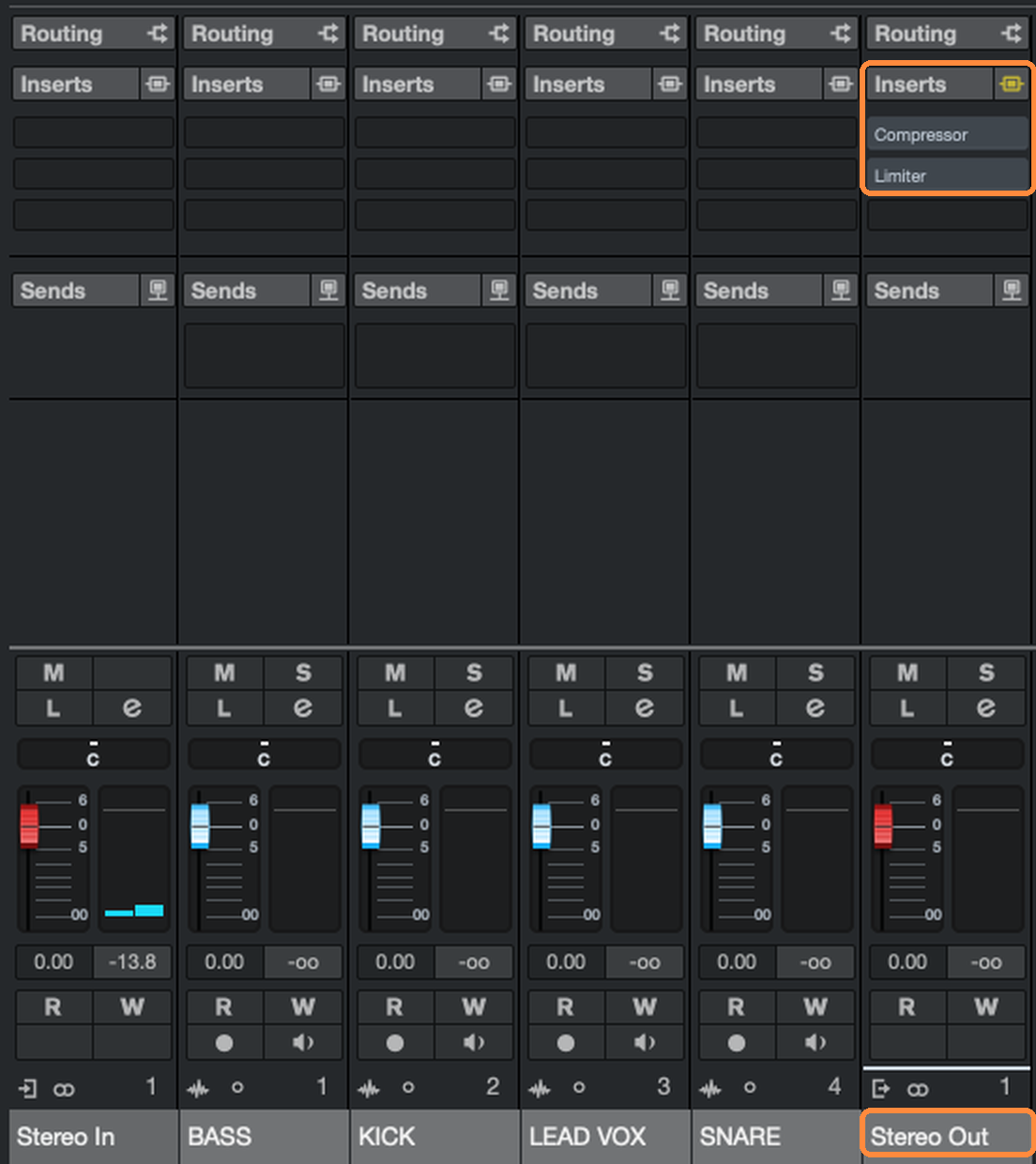
1. Turn off anything on the Stereo Out
Open the MixConsole (F3). On the Stereo Out channel, click the small button at the right of Inserts so it turns yellow. That bypasses every plugin on it at once.
2. Screenshot your Stereo Out plugins
Take a screenshot of the Stereo Out channel's inserts, showing every plugin and the order they're in, and put it in the stems folder. Switched off is fine in the picture. I just need to see what's there.
That's how I rebuild your rough mix's master chain exactly, so what I'm mixing against sounds like what you sent.
Then open each plugin's window and screenshot that too, so I can copy its settings knob for knob.
3. Set the locators from bar 1
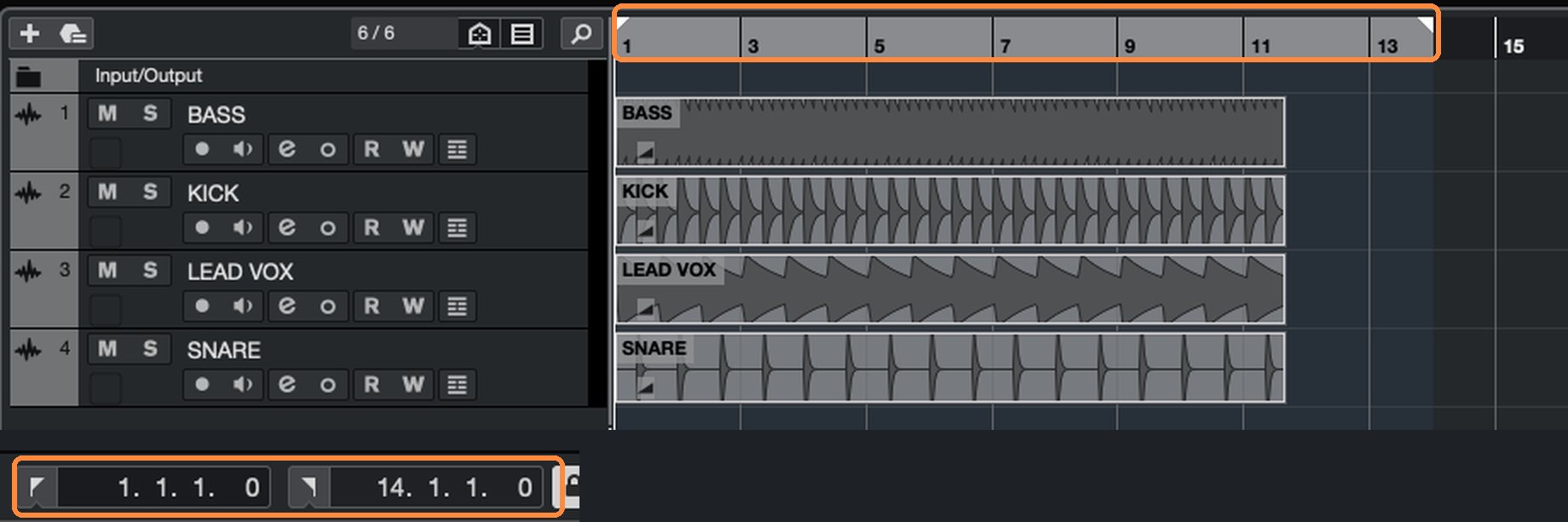
Set the left locator to 1. 1. 1. 0 and the right locator a bar or two past the last note. Double-click the locator fields in the Transport bar and type them in — don't use P on a selection, which starts at the first note rather than bar 1.
4. Open Export Audio Mixdown
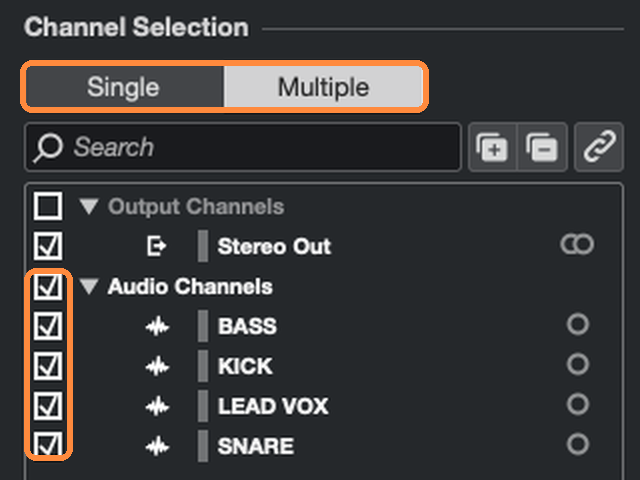
File › Export › Audio Mixdown…. Under Channel Selection, click Multiple, then tick every audio, instrument, group and FX channel. Ticking a heading like Audio Channels ticks everything under it.
5. Set the names, format and range
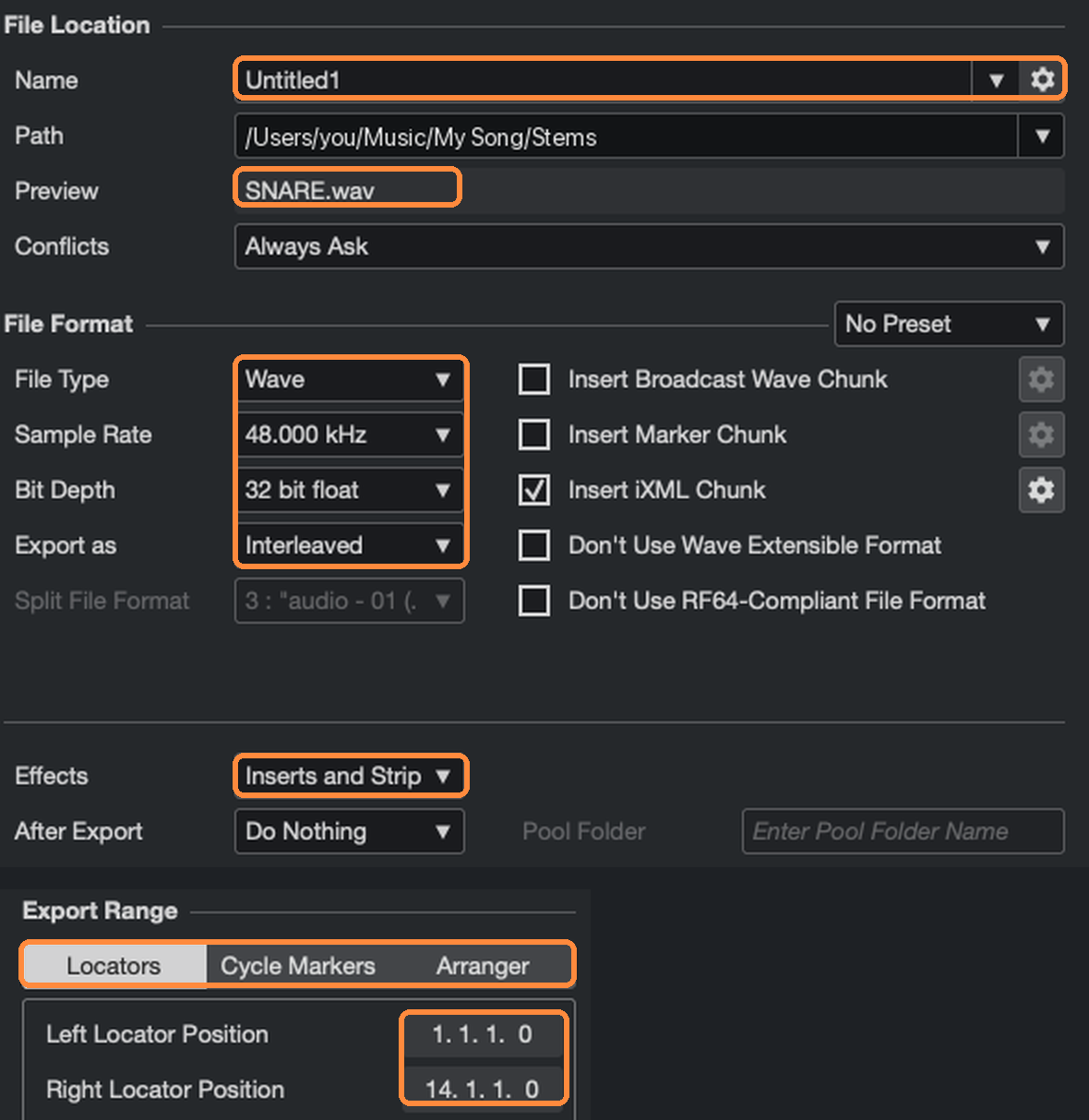
Next to Name, click the gear. In Naming Scheme, remove everything from Result except Channel Name, so each file is named after its track. Preview should show just the track name. Pick a new folder for the song under Path.
File Type: Wave. Sample Rate: the same as your project — whatever you recorded at, don't switch it. Bit Depth: 32 bit float, so a channel that goes over 0 dB doesn't get clipped in the file. Export as: Interleaved.
Effects: Inserts and Strip, so each file is that channel as it sounds, but not the groups or master after it.
Export Range: Locators, and check it reads from 1. 1. 1. 0.
6. Export
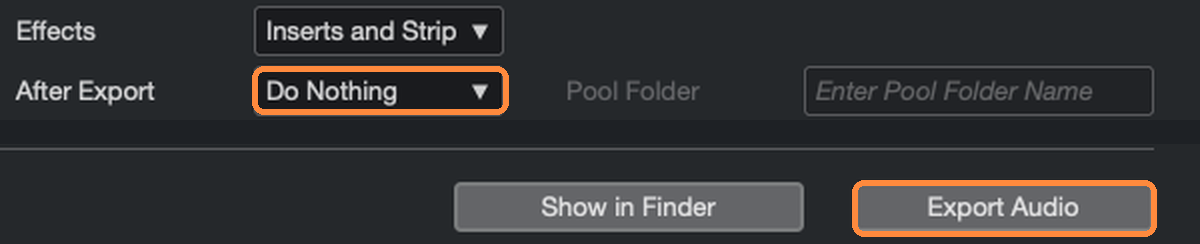
Leave After Export on Do Nothing and click Export Audio.
For the dry lead vocal, set Channel Selection back to Single, tick just the lead vocal, set Effects to Disabled (DRY), put "DRY" in the name, and export again.
Before you send it
- One file per track, each named after its track.
- Every file is the same length and starts at bar 1, beat 1.
- Drag them all into an empty session at bar 1 and press play: it should sound like your rough mix.
- The rough mix and your session file are in the same folder.
- A screenshot of your master bus plugins, in order, is in there too.