Bouncing stems in Logic Pro
In Logic you bounce one track at a time, soloed, through Bounce Project or Section. It's slower than the batch export, but it's the only way I've found that never drops a part.
Don't use File › Export › All Tracks as Audio Files. It skips regions, ignores some plugins and loses automation often enough that I can't trust what comes back.
The settings, at a glance
- Destination
- Uncompressed only
- Mode
- Automatic
- Include Audio Tail
- Ticked
- Normalize
- Off
- File Type
- WAVE
- Bit Depth
- 32-bit float
- Sample Rate
- Same as your project — don't change it
- Format
- Interleaved
- Dithering
- None
1. Turn off anything on the Stereo Out
Open the Mixer (X) and find the Stereo Out channel on the far right. Bypass every plugin on it: hover over each plugin's slot and click the power button that appears on its left, so the slot turns grey.
Every bounce goes through the Stereo Out, so anything left on it gets printed onto every single track.
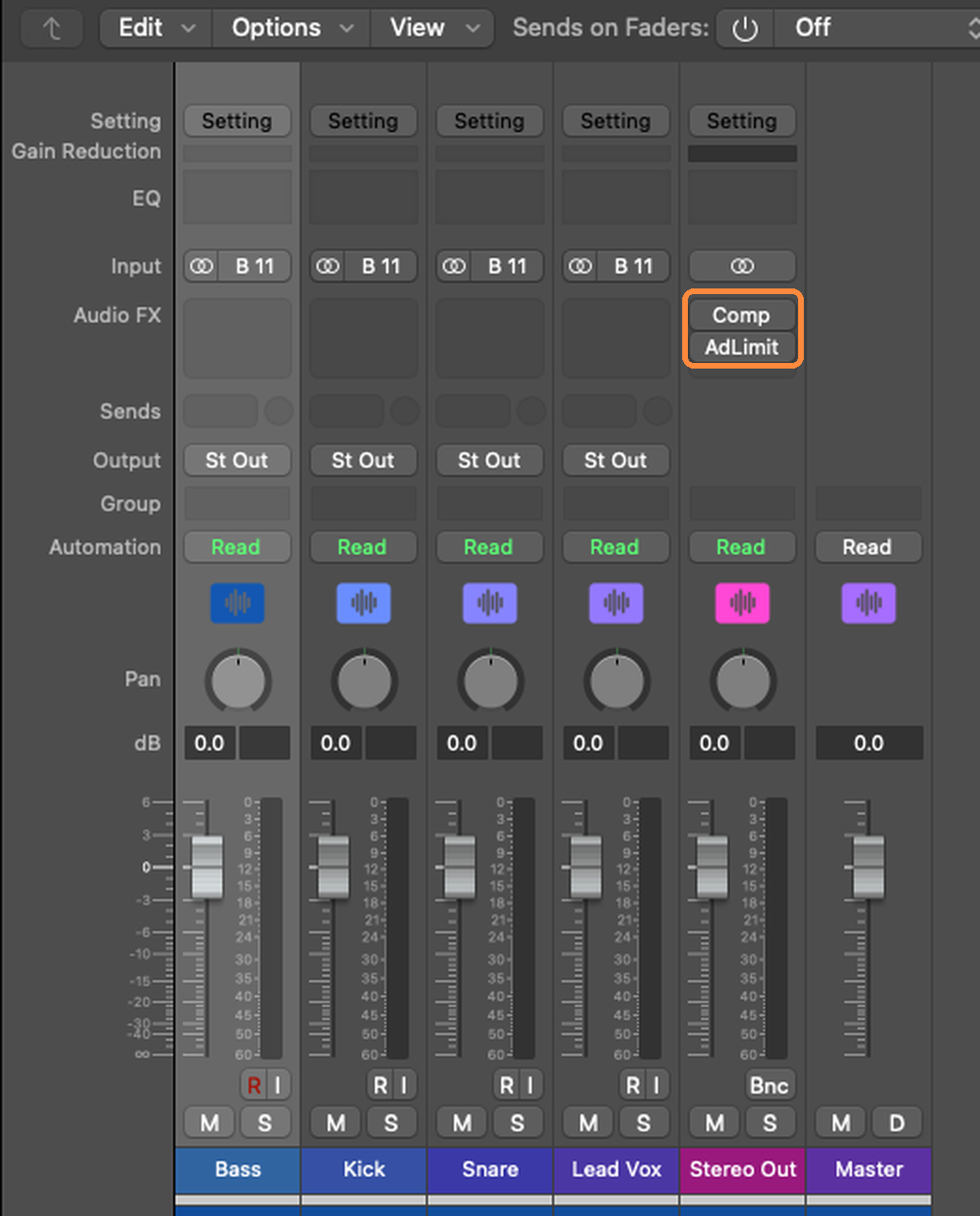
2. Screenshot your Stereo Out plugins
Take a screenshot of the Stereo Out channel's Audio FX slots, showing every plugin and the order they're in, and put it in the stems folder. Switched off is fine in the picture. I just need to see what's there.
That's how I rebuild your rough mix's master chain exactly, so what I'm mixing against sounds like what you sent.
Then open each plugin's window and screenshot that too, so I can copy its settings knob for knob.
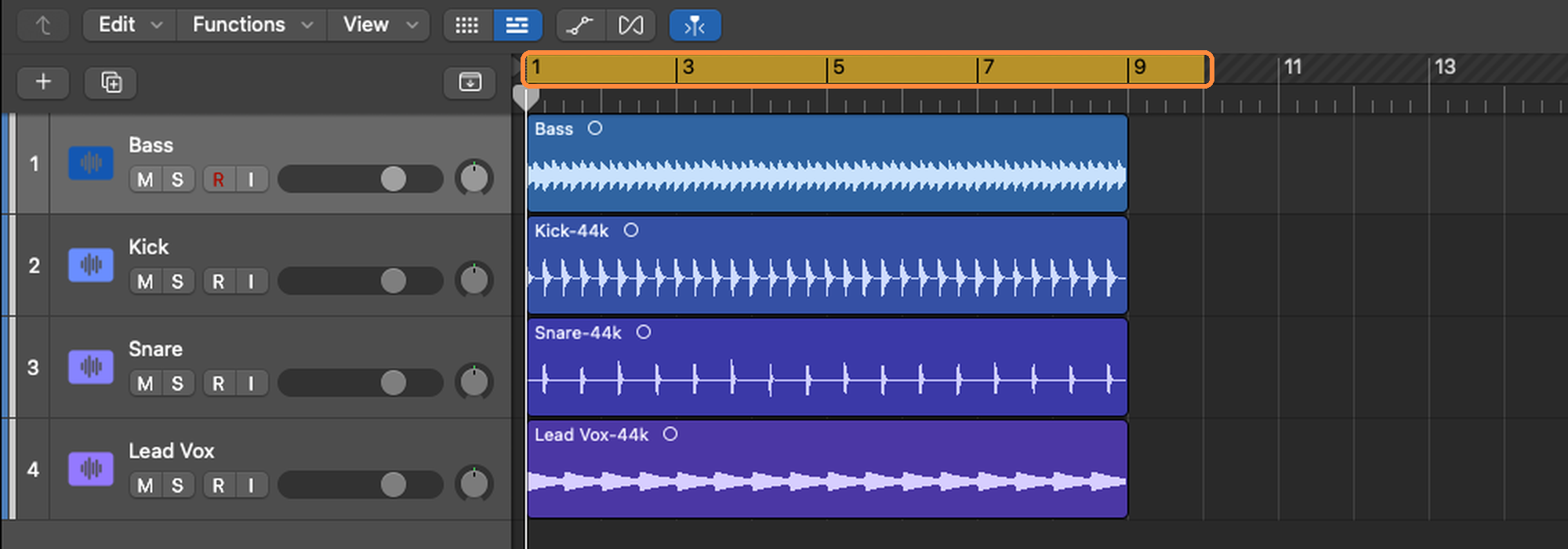
3. Set the bounce range from bar 1
Turn on Cycle and drag it from bar 1 to a bar or two past the last note, so reverb and delay tails have room to ring out.
Use the same range for every track. That's what makes the files line up on my end.
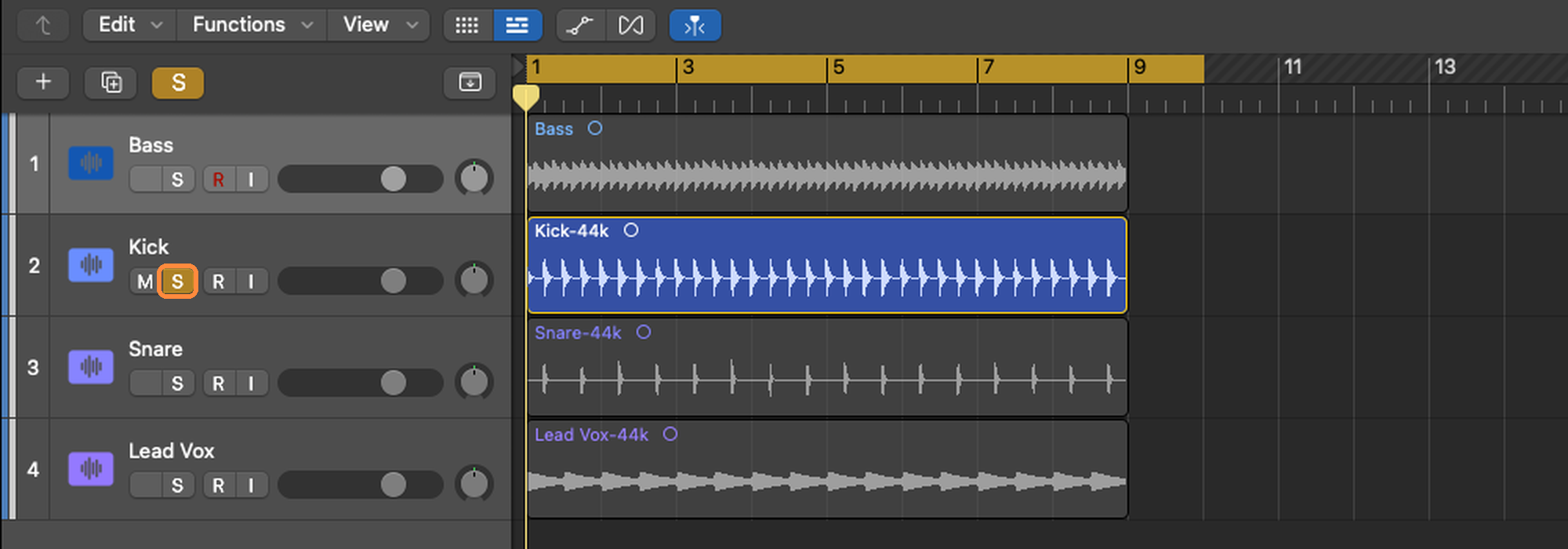
4. Solo the first track
Solo one track (S). If it feeds a bus — a reverb send, a parallel compressor — that bus plays too, which is what you want: the track as it sounds in the mix.
If the track lives in a Summing Stack, solo the track inside it, not the stack.
5. Open Bounce and set it up
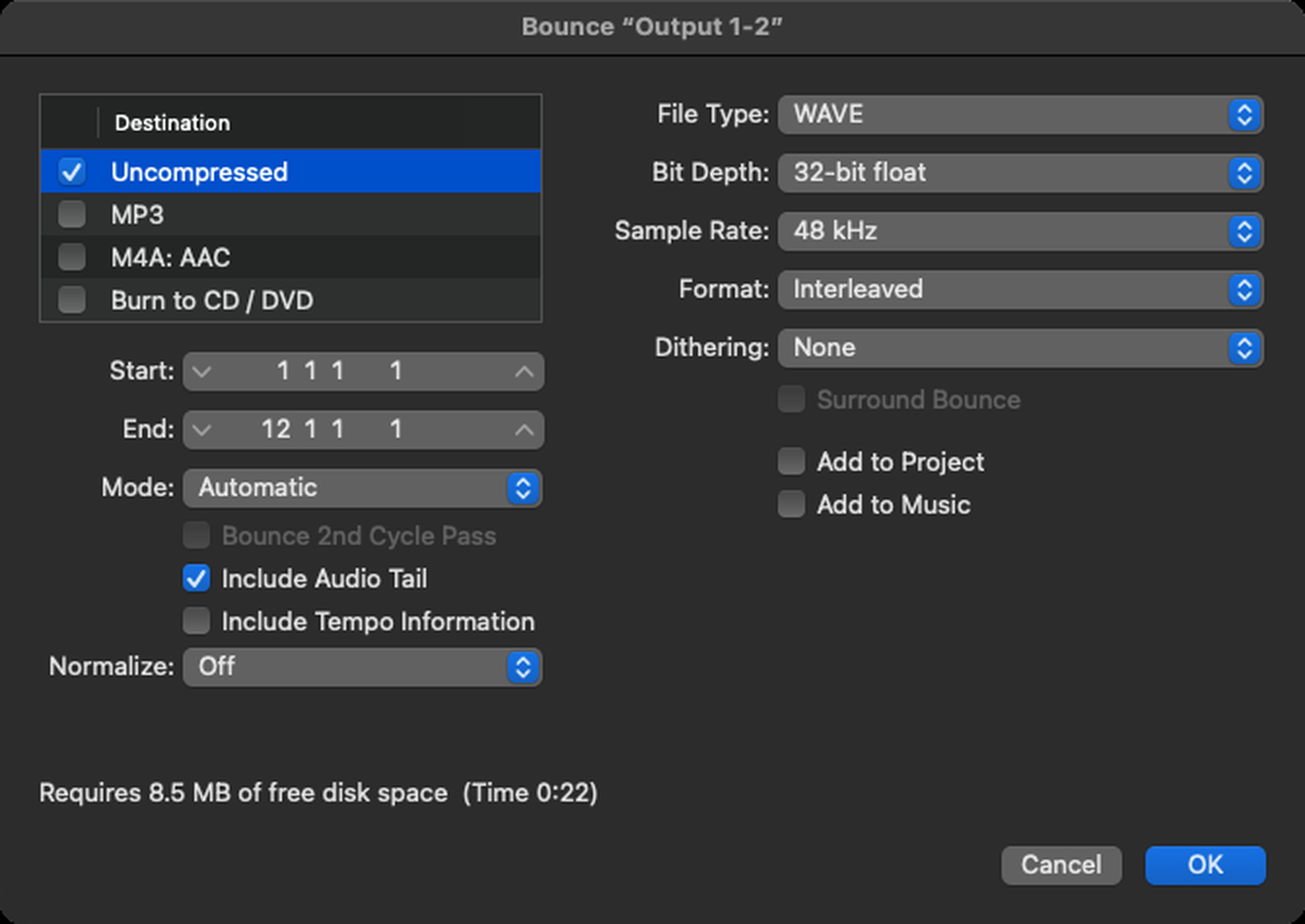
File › Bounce › Project or Section… (⌘B). Under Destination, tick Uncompressed only, and set it up as below. Logic remembers this, so you only do it once.
Bit Depth is 32-bit float, so a channel that goes over 0 dB doesn't get clipped in the file.
Start should read 1 1 1 1 and End should match your cycle. File Type: WAVE. Bit Depth: 32-bit float. Format: Interleaved. Dithering: None. Normalize: Off. Tick Include Audio Tail.
Sample Rate: leave it at your project's rate — whatever you recorded at, 44.1 kHz or 48 kHz. Don't switch it for the bounce.
Mode: leave it on Automatic. Switch to Realtime if you've got external hardware or a plugin that misbehaves offline.
6. Name it after the track and bounce
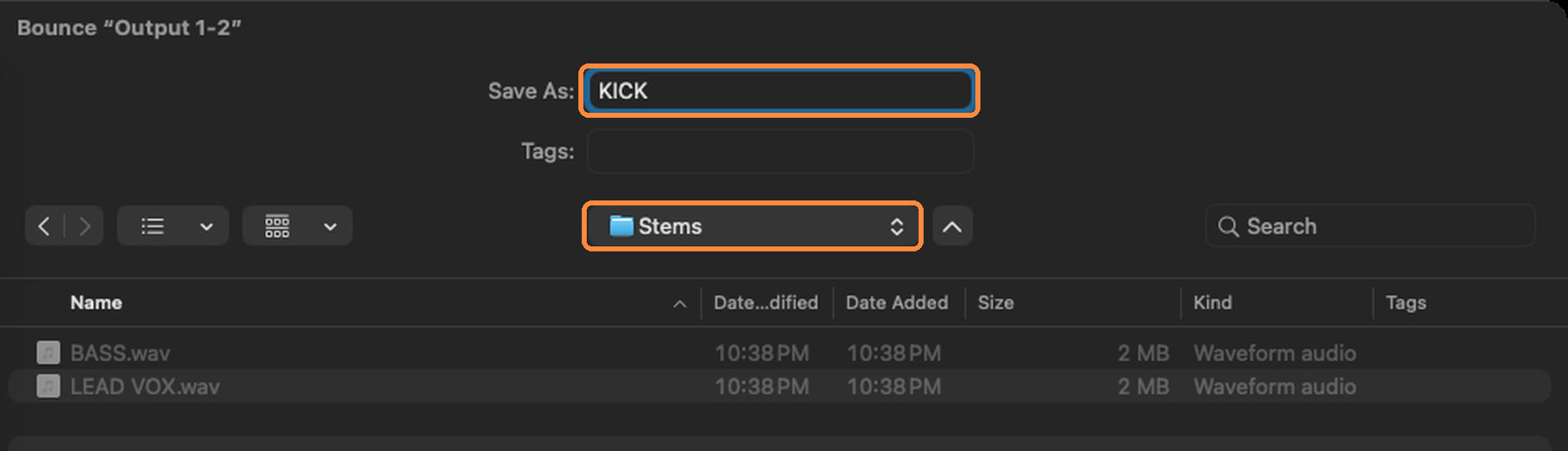
Click OK. In Save As, name the file after the track (KICK IN, LEAD VOX), pick one folder for the whole song, and click Bounce.
7. Repeat for every track
Unsolo, solo the next track, ⌘B, OK, name it, Bounce. Same range every time.
For the lead vocal, bounce it twice: once with its plugins switched off (dry) and once as it sounds in the mix (wet). Then solo each of its reverb and delay returns on their own and bounce those too.
Before you send it
- One file per track, each named after its track.
- Every file is the same length and starts at bar 1, beat 1.
- Drag them all into an empty session at bar 1 and press play: it should sound like your rough mix.
- The rough mix and your session file are in the same folder.
- A screenshot of your master bus plugins, in order, is in there too.
Other DAWs
Ableton Live · FL Studio · Cubase · Pro Tools